
We need to number our rows, but we have no idea how large our data set’s gonna get. That’s why Excel row numbering needs to update as the list grows, and also fix itself when rows get deleted.
This post covers two ways that update automatically: one for a normal range (not a table), and one for a proper Excel Table (the most stable, business-ready option). Along the way, you’ll also see why a quick manual method often breaks the moment your data changes.
Why manual numbering breaks as your data changes
Manual row numbers look fine at first, until your sheet starts moving. Add a few new orders, remove a duplicate, insert a row in the middle, and your tidy list turns into a mess.
A manual approach has two core problems:
- It doesn’t grow on its own, so you keep extending it.
- It doesn’t re-number after deletes or inserts, so it goes out of sync.
That’s why the goal is simple: tie the numbering to your data, so it updates when the data updates.
A quick manual option (useful, but it won’t update)

If you just need a fast set of numbers for a static list, Fill Series works for row numbering in Excel.
Fill Series steps (manual)
- Go to the Series box with Alt, H, F, I, S.
- Set it to count from 1 to the number you want (for example, 500).
- Confirm, then Excel fills the numbers for you.
This is great if the data won’t change. Still, as soon as you add more rows, you’ll have to extend the numbering. If you delete a row, Excel won’t automatically change that numbering either, you’ll have to do that manually.
Excel Row Numbering that updates automatically (for non-table ranges)
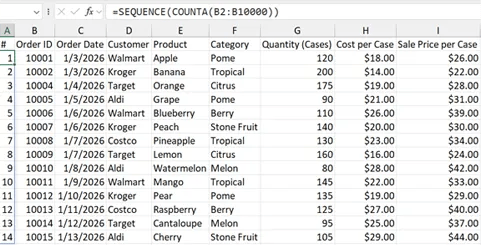
If your data is not in a table, you can add a numbering column that only counts as far as your data goes. The idea is: count how many cells have data in a given column, then generate a matching sequence.
SEQUENCE + COUNTA steps (updates on add and delete)
- Insert a new column for the row numbers.
- In the first cell of that new column, enter this formula:
=SEQUENCE(COUNTA(B2:B10000)) - Press Enter.
Excel will spill the results down, and it will only number as many rows as it sees in B2:B10000. In the example shown, it numbered down to row 15 because that’s how many data rows existed.
Next, add another order number (or any new row of data in that counted range). The numbering expands to include that row. Then try deleting a row (for example, remove row three). As a result, it renumbers everything so the sequence stays continuous.
The most stable option: Excel Tables + the ROW formula

Now for the option that tends to hold up best in day-to-day work: put the data in a table, then add a formula column that fills automatically.
Convert your range to a table and name it
- Click anywhere inside your dataset.
- Press Control T.
- Check table has headers, then click OK.
- Set the table name (example: TBL Orders).
Tables bring structure. They also auto-fill formulas down new rows, which is exactly what you want for Excel row numbering.
Insert the numbering column inside the table (not outside it)
A common mistake happens here: if you insert a normal worksheet column, Excel may place it outside the table, which defeats the point.
- Select the table’s column header in column A (the header cell, not a random cell).
- Right-click, then choose Insert, Table Columns to the Left.
- Rename that new header to something like Row Number.
ROW formula steps (auto-fills as the table grows)
- Click the first data cell in your new numbering column.
- Enter:
=ROW() - Press Enter.
Excel fills the formula down the table. Now add a new row to the dataset and it automatically numbers that row. Delete a row and it automatically redoes the row numbering in Excel, too.
Which method should you use?
Here’s the practical difference between the two auto-updating options.
| Method | Works outside a table | Updates when you add rows | Updates when you delete rows | Best fit |
|---|---|---|---|---|
| SEQUENCE + COUNTA | Yes | Yes | Yes | Ranges that are not tables |
| Table + ROW | No (requires a table) | Yes | Yes | Structured, business-ready datasets |
If your sheet already uses tables (or should), the Table + ROW approach keeps things consistent with the least upkeep.
Common mistakes that cause numbering headaches
Two issues show up the most:
- Inserting the column outside the table: the formula won’t auto-fill as rows get added.
- Counting the wrong range: if your COUNTA range doesn’t cover future rows, your numbering stops early.
Fix those two, and the numbering stays reliable.
Conclusion
Excel row numbering works best when it reacts to your data, not when it relies on manual fill. Use =SEQUENCE(COUNTA(B2:B10000)) when your list is a normal range, and use a Table with =ROW() when you want the most stable setup. Most importantly, test both adding and deleting rows before you call it done. Low-maintenance numbering saves time every time the sheet changes.
Get Started with Microsoft 365
Be sure to subscribe to my YouTube Channel for more Microsoft Excel and Microsoft 365 Tutorials.
This page may contain affiliate links. These are tools I personally use and love. I may receive a small commission should you make a purchase using one of these links. This helps keep the tutorials and website posts coming and up to date. Thank you for your support! For more information please see my full disclaimer.


