
If someone were to open our Excel file today, would it be a model or a mess? A sheet can look like a regular worksheet and still hide problems that break trust. If you want to design structured Excel models, the goal is simple: inputs go in, Excel calculates results, and anyone can follow the logic without fear.
Below is a practical rebuild that turns a fragile sheet into something accurate, consistent, and clear.
How a normal worksheet turns into a mess
At first glance, a messy sheet often looks fine. You see rows, columns, a few totals, and numbers that seem to add up.
The trouble shows up when the sheet mixes manual entries with calculated fields, uses formulas that change from row to row, or hides hard-coded numbers inside formulas. Then someone new opens it and has to guess what’s safe to edit.
The problem isn’t whether it calculates. The problem is that you cannot trust this data when the structure is inconsistent.
The biggest risk: mixing manual data and calculated fields
One issue stands out fast: We have a mixture of data that we’re entering manually with data that’s being calculated, and they’re mixed together.
That’s risky because a person can overwrite a formula without noticing. After that, reports based on the sheet can be wrong, even though everything still looks okay.
Audits also get harder. If someone has to review your workbook, they’re gonna have to figure out what’s going on before they can actually audit our data. That means time spent tracing cells instead of checking results. But using a structured Excel model can help.
Inconsistent formulas and hard-coded numbers create errors
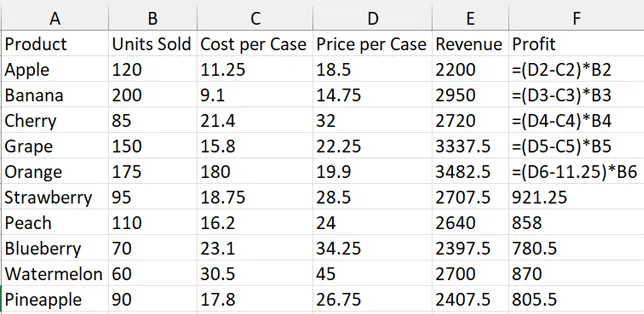
Inconsistency shows up in two common places: revenue and profit.
In the revenue column, the sheet uses different methods across rows:
- Row 2:
=B2*D2(calculated) - Row 3:
=D3*B3(same math, but reversed) - Row 7: manually entered (not calculated)
Even when the result matches, the sheet becomes harder to work with and easier to break. As you said, while this is accurate, it is inconsistent, and that inconsistency introduces the chance of there being errors.
Profit has its own issues. Some rows correctly calculate price minus cost. Then manual overrides appear. One row even hard-codes a value: In row six… we have hard-coded that at $11.25. Worse, it’s $12.60, so it’s already an issue. If inputs change later, that hard-coded value won’t update, so revenue and profit can drift away from reality.
Plain ranges don’t scale, tables do
Another structural problem is that the data is just a range of data. A normal range doesn’t expand cleanly. When you add a new line, you often have to drag formulas down, re-check totals, and hope nothing got missed.
That’s why structured tables matter when you design structured Excel models. The math can stay the same, but the sheet becomes safer and easier to extend.
Rebuild it as a model (inputs in, results out)
A model is where we provide the inputs and Excel calculates the results. That idea applies to revenue, profit, forecasting, inventory, and anything else that drives decisions.
The rebuild below focuses on accuracy, consistency, and clarity, starting with a table.
Step 1: Convert the range to a table (Ctrl plus T)

- Select your data range.
- Press Ctrl plus T.
- Confirm My table has headers, then click OK.
Next, name the table so formulas read clearly. 4. Name the table tblFruit.
That one name makes formulas easier to read and maintain than cell addresses.
Step 2: Calculate revenue with a structured reference
![Excel revenue formula using structured references: =[@[Units Sold]]*[@[Price per Case]] inside a named table column.](https://i0.wp.com/melcompton.com/wp-content/uploads/2026/02/excel-revenue-formula-structured-reference-table.webp?resize=636%2C118&ssl=1)
In the Revenue column, use:
=[@UnitsSold]*[@PricePerCase]
When you see an @… that just means the current row. Excel also outlines the referenced columns, which helps you see dependencies at a glance.
After you press Enter, the table fills the formula down automatically. You may see the lightning bolt AutoCorrect options icon. It’s basically Excel saying it carried the formula down and asking if you want anything different. This is part of the structured Excel model.
Step 3: Calculate profit with one consistent formula
![Excel profit formula using structured references: =([@[Price per Case]]-[@[Cost per Case]])*[@[Units Sold]] inside a named table column.](https://i0.wp.com/melcompton.com/wp-content/uploads/2026/02/excel-profit-formula-structured-reference-table.webp?resize=664%2C94&ssl=1)
For Profit, use:
=([@PricePerCase]-[@CostPerCase])*[@UnitsSold]
This keeps the logic consistent across every row. After you hit Enter, it auto-fills down, so every item uses the same calculation.
Step 4: Add total revenue and total profit (separate outputs)
Add a total row (or rows) outside the input area, then use:
![Excel SUM formula using structured reference =SUM(tblFruit[Revenue]) calculating total revenue below a named table.](https://i0.wp.com/melcompton.com/wp-content/uploads/2026/02/excel-table-total-revenue-sum-structured-reference.webp?resize=371%2C305&ssl=1)
- Total Profit:
=SUM(tblFruit[Profit]) - Total Revenue:
=SUM(tblFruit[Revenue])
![Excel SUM formula using structured reference =SUM(tblFruit[Profit]) calculating total profit below a named table.](https://i0.wp.com/melcompton.com/wp-content/uploads/2026/02/excel-table-total-profit-sum-structured-reference.webp?resize=361%2C293&ssl=1)
Because the formulas reference the table and column names, the intent is clear. You also separate outputs from inputs, which makes the sheet easier to read.
Finally, test scale by adding a new row of data. The table expands, and totals update, pushing the totals down as needed.
Use an audit checklist to keep it clean

If you receive a workbook from someone else, or you’re building a new one, an audit checklist helps you avoid creating a mess for somebody else.
A short version of the checklist items you called out:
- No hard-coded numbers inside of formulas
- Clear and descriptive headers
- No volatile functions or formulas
Track a simple status for each check (pass, fails, or needs review), then add notes for anything you need to fix. This is also a practical habit if you regularly design structured Excel models for other people to use.
Power Query is great, but structure still comes first
Before someone says, ‘Power Query, Power Query, Power Query,’ I love Power Query. Still, the issue here isn’t importing or transforming data. It’s workbook structure. Power Query won’t work as well if your workbook is already a mess.
Clean structure makes every tool work better, including Power Query.
Conclusion
A sheet can calculate and still be unreliable. The fix is consistency, clear separation of inputs and outputs, and table-based formulas that scale. If you design structured Excel models, you stop guessing which cells are safe, and you make audits faster. Build it so the next person can open the file and instantly see a model, not a mess.
Get Started with Microsoft 365
Be sure to subscribe to my YouTube Channel for more Microsoft Excel and Microsoft 365 Tutorials.
This page may contain affiliate links. These are tools I personally use and love. I may receive a small commission should you make a purchase using one of these links. This helps keep the tutorials and website posts coming and up to date. Thank you for your support! For more information please see my full disclaimer.


